Shotglot
Store screenshots in every language.From your frames and a sheet.
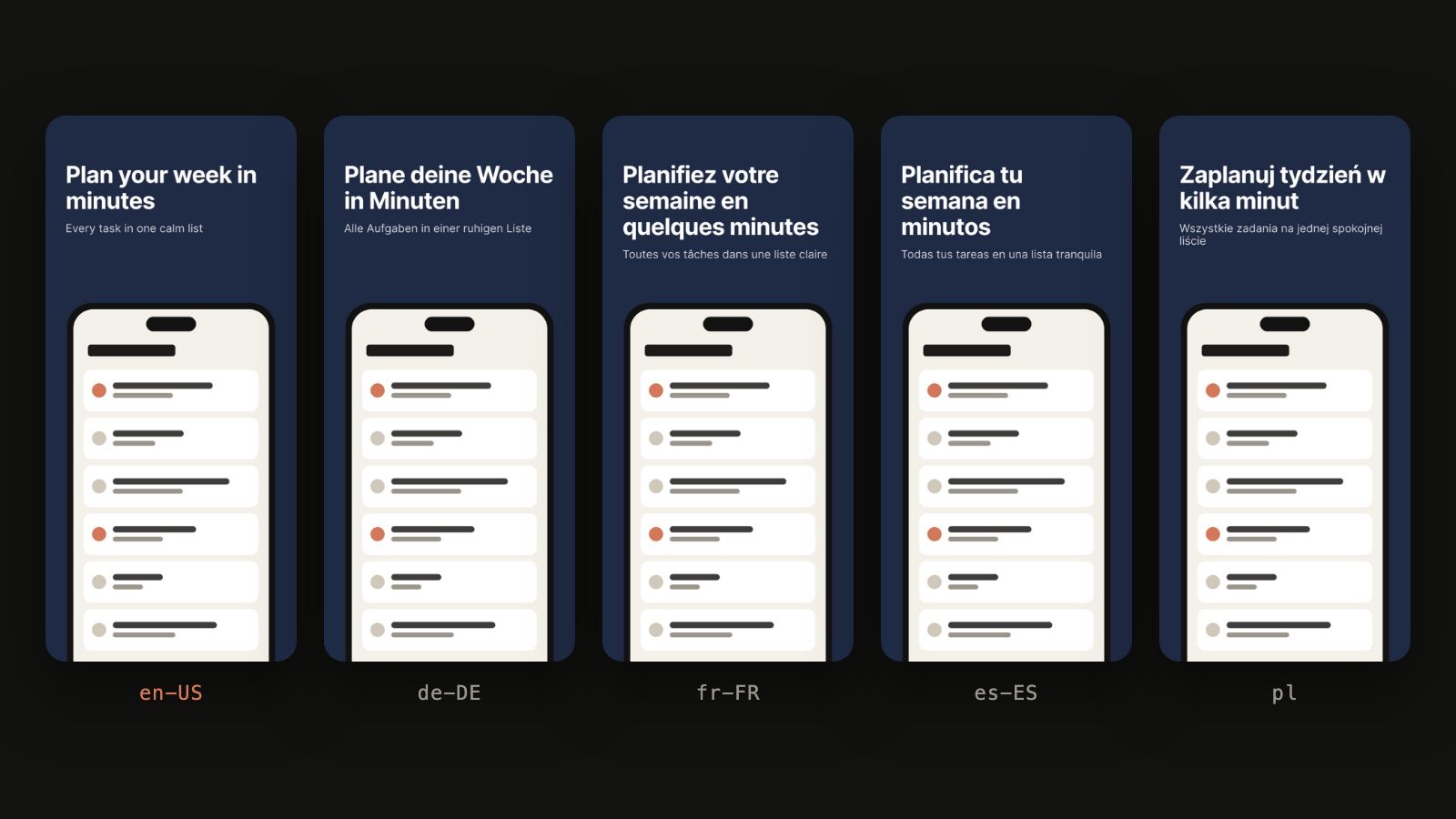
Shotglot turns your screenshot designs into store-ready sets for every language. Design one frame per screen, put your captions in a sheet, and Shotglot makes a copy of every screen in every language, checks it against the App Store and Google Play rules, and exports a zip in the folders fastlane reads. One language is free; every language is a one-time purchase in Figma.
The problem
Five languages, five screens and two stores are fifty images. Each has to be the exact size the store asks for, without an alpha channel, named and filed the way your upload tool expects.
Copy and paste, fifty times
You duplicate frames, paste each caption, check that the German one still fits, and do it again next release.
Stores reject small mistakes
A pixel off, a transparent corner or the eleventh screenshot of a size, and the upload fails after you’ve already exported everything.
What you actually need
Your own design in Figma, your captions in a sheet, and every screenshot in every language made for you and checked before you upload.
How it works
Number your frames
Design each screen as a frame at a store size (iPhone, iPad 13” or any Google Play size) and start its name with its screen number: 01 Home, 02 Share.
Name the text you translate
Name the text layers to fill after your sheet: #Headline, #Sub. Sheet from frames writes your frames’ texts as a sheet to start from: copy it into Google Sheets or Excel and add a column per language.
Paste the sheet and generate
Copy the cells back and paste them: keys in column A (01.Headline), one column per language (en-US, de-DE, pl, zh-Hans, App Store or Google Play codes). Generate copies puts a copy of every screen in every language in a “Shotglot output” section next to your frames. Change the sheet and generate again: copies update in place, and text you edited by hand is kept and listed.
Export
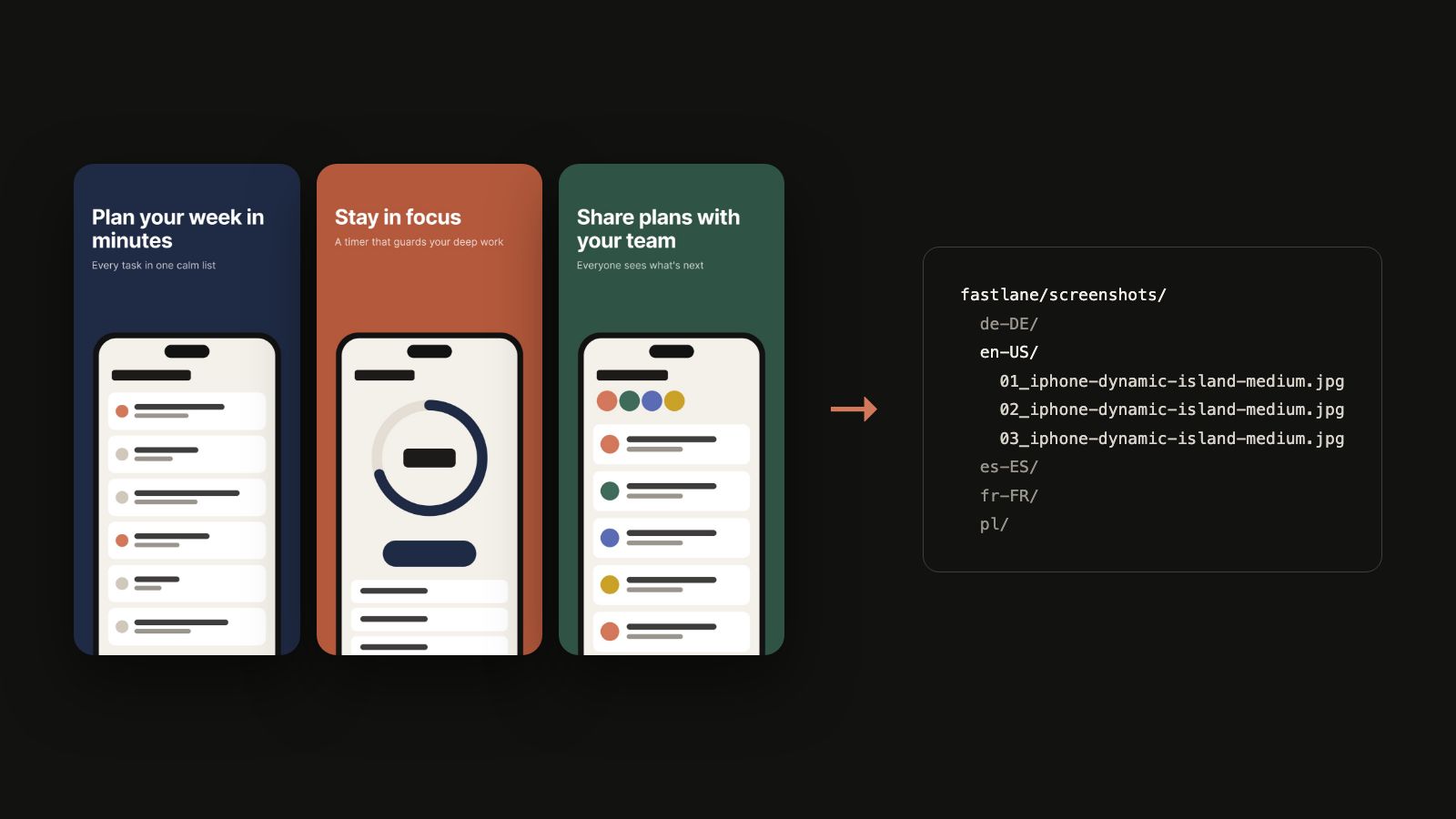
JPEG or PNG without an alpha channel (App Store Connect rejects one), at the exact frame size, in the folders fastlane reads: fastlane/screenshots/<language>/ for the App Store, and fastlane/metadata/android/<language>/images/phoneScreenshots/ plus images/featureGraphic.jpg for Google Play. A large export comes as several zips, each language whole in one of them.
What it handles
Panoramas
Make one frame several screenshots wide and name it with the range, 01–05 Panorama. Shotglot cuts it into screens 01 to 05 in every language, and warns when text crosses a cut.
A screenshot per language
Different app screenshots for each language? Put them in a layer named like #Shot, each named with its language code as the store writes it (en-US, de-DE, pl), plus an optional default. Each copy keeps its own language’s screenshot.
Long translations
Add ~ to a text layer, #Headline~, and a long translation shrinks until it fits, down to 75% of your size. Without ~, text that overflows its box or is cut off by the screen edge is listed after you generate.
The Google Play feature graphic
A 1024×500 frame is the feature graphic Google Play requires, filled from feature.Headline rows and exported where fastlane expects it. A Google Play language without one is flagged.
Checks before every export
Too many screenshots for a store (App Store: 10 per display size; Google Play: 8) stop the export, with the list. You also get warnings for a missing required iPhone size, too few screenshots or no feature graphic for Google Play, and sets below Google Play’s promotion threshold.
Copies left behind
Drop a language from the sheet and generate: its old copies are listed with Delete copies, and one Undo in Figma brings them back. Copies whose template you deleted or renamed are listed and left out of the export, and the export says which languages it contains.
Free and Pro
Free does everything for one language and runs every check for all of them: the first language column of your sheet, with its App Store and Google Play codes (pl and pl-PL) counted as one. Pro does every language.
| Feature | Free | Pro |
|---|---|---|
| Copies from your frames and a sheet | One language | Every language |
| Panoramas, language layers, shrink to fit | One language | Every language |
| Google Play feature graphic | One language | Every language |
| Export: JPEG or PNG without alpha, fastlane folders | One language | Every language |
| Store checks and text-fit warnings | Every language | Every language |
| Sheet from frames | Yes | Yes |
Price
Pro is a one-time purchase in Figma that never expires; the price is on the plugin’s Community page and at checkout. Figma handles payment and tax, and Pro stays with your Figma account, with no key to enter. Refunds and the rest of the rules: Terms.
Install
Shotglot is on its way to Figma Community; the link goes here once it’s published. In the plugin, on an empty file, Create sample adds two iPhone frames and a sample sheet, so you can generate three languages right away.
Questions
Does it upload to the App Store or Google Play?
No. It exports a zip laid out the way fastlane reads it: fastlane deliver takes the App Store screenshots and fastlane supply the Google Play ones. You can also add the files by hand in App Store Connect and the Play Console.
Does it translate?
No. Your sheet holds the translations, yours or your translator’s. Sheet from frames gives you the sheet to send.
Which sizes does it support?
The iPhone and iPad 13” sizes App Store Connect lists, for example 1206×2622, 1320×2868 and 2064×2752, in portrait or landscape; any Google Play phone size; and the Google Play feature graphic, 1024×500. Android tablets and other platforms aren’t supported yet.
Does it add device frames?
No. Draw the device into your template, as in the pictures on this page; Shotglot copies it with the rest of the frame.
Can I connect a Google Sheet?
Not yet. Copy the cells and paste them, or paste CSV.
What happens to my edits in the copies?
Text you change in a copy is kept on the next Generate and listed, so a fix you made by hand isn’t overwritten. Every Generate is one Undo step in Figma.
What data leaves Figma?
Nothing. Shotglot has no network access: it never sends your designs, your sheet or anything else anywhere. It keeps short notes on the copies it makes, and the sheet you last generated from, inside your Figma file (Forget sheet removes it). Figma tells the plugin whether you have Pro. Details: Privacy.